Table of Contents
- Setting up IPTV is easier than you think
- What you need before you start
- How to set up IPTV on Amazon Firestick
- How to set up IPTV on a smart TV
- How to set up IPTV on Android devices
- How to set up IPTV on iPhone and iPad
- How to set up IPTV on a Windows computer
- Troubleshooting common setup issues
- Final thoughts
When I first decided to try IPTV, the setup part honestly intimidated me a little. I am not a tech guy by any stretch. I can write articles all day long and I can tell you everything about last week’s football game, but asking me to configure apps and enter server URLs felt like a different language.
Turns out I was overthinking it. The whole process took me about ten minutes on my Firestick, and once I got the hang of it, setting it up on my other devices was even faster. If I can do this sitting in my living room in Mesa with zero technical background, you can absolutely do it too.
Let me walk you through the setup process for every major device so you can pick the one that applies to you and get streaming as fast as possible.
What you need before you start
Before you touch any device, make sure you have a few things ready. Having everything in front of you before you begin will save you from that frustrating back-and-forth of stopping mid-setup to hunt for information.
Your IPTV subscription details. When you sign up with an IPTV provider, they will send you login credentials. This usually includes a username, a password, and a server URL — sometimes called an M3U URL or Xtream Codes login. Keep this information handy because you will need to enter it into your IPTV app during setup.
A stable internet connection. Make sure your Wi-Fi is working properly before you start. If possible, connect your primary streaming device to your router using an ethernet cable for the most reliable connection. If you are using Wi-Fi, stay as close to the router as you can and make sure no one in the house is downloading large files or running heavy bandwidth activities during setup.
A compatible device. This could be an Amazon Firestick, a smart TV, an Android phone or tablet, an iPhone, an iPad, or a Windows computer. I will cover each one individually below.
An IPTV player app. Your provider may recommend a specific app, but the most commonly used ones are IPTV Smarters Pro, TiviMate, and GSE Smart IPTV. Some providers have their own custom app. Either way, you will need to install one of these on your device to access the service.
Got all that ready? Good. Let us get into it.
How to set up IPTV on Amazon Firestick
The Firestick is by far the most popular device for IPTV and for good reason. It is affordable, portable, and powerful enough to handle HD and 4K streaming without breaking a sweat. This is what I use as my primary setup at home and it has been rock solid.
Step 1. Enable apps from unknown sources. Go to your Firestick home screen. Navigate to Settings, then My Fire TV, then Developer Options. Turn on “Apps from Unknown Sources.” This allows you to install IPTV apps that are not available on the Amazon App Store. Some newer Firestick models may label this slightly differently, but the idea is the same.
Step 2. Install the Downloader app. Go back to the home screen and open the search bar. Type “Downloader” and install the app. This free tool lets you download IPTV apps directly onto your Firestick by entering a URL.
Step 3. Download your IPTV app. Open the Downloader app and type in the URL your IPTV provider gave you for their app. If they did not provide a direct link, you can search for the download URL of popular apps like IPTV Smarters Pro or TiviMate. The app will download and prompt you to install it.
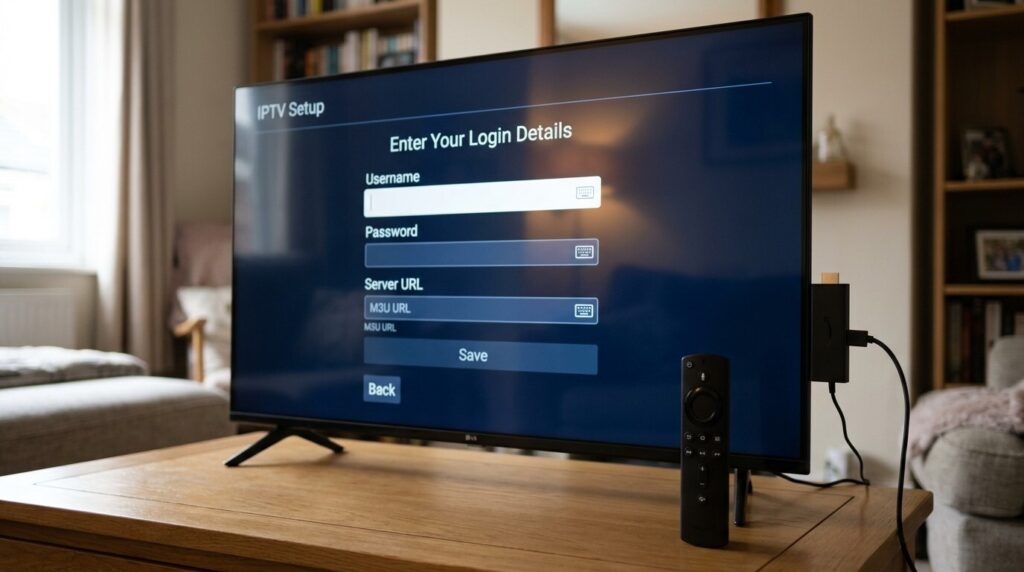
Step 4. Open the app and enter your credentials. Launch the IPTV app once it is installed. Select the login method — most apps give you the option to log in using Xtream Codes API or by loading an M3U URL. Enter the username, password, and server URL your provider sent you.
Step 5. Start watching. Once your credentials are accepted, the app will load your channel list and VOD library. Browse through the categories, pick something, and you are officially streaming.
The whole process takes about five to ten minutes if you have your information ready.
How to set up IPTV on a smart TV
If you have a Samsung, LG, or any Android-based smart TV, you can run IPTV directly on the television without needing an external device. The process varies slightly depending on the brand, but the general steps are similar.
For Android-based smart TVs like Sony, TCL, Hisense, and others running Android TV or Google TV, setup is straightforward. Open the Google Play Store on your TV. Search for your IPTV app — IPTV Smarters Pro and TiviMate are both available there. Install the app, open it, and enter your subscription credentials the same way I described for the Firestick. You should be up and running within a few minutes.
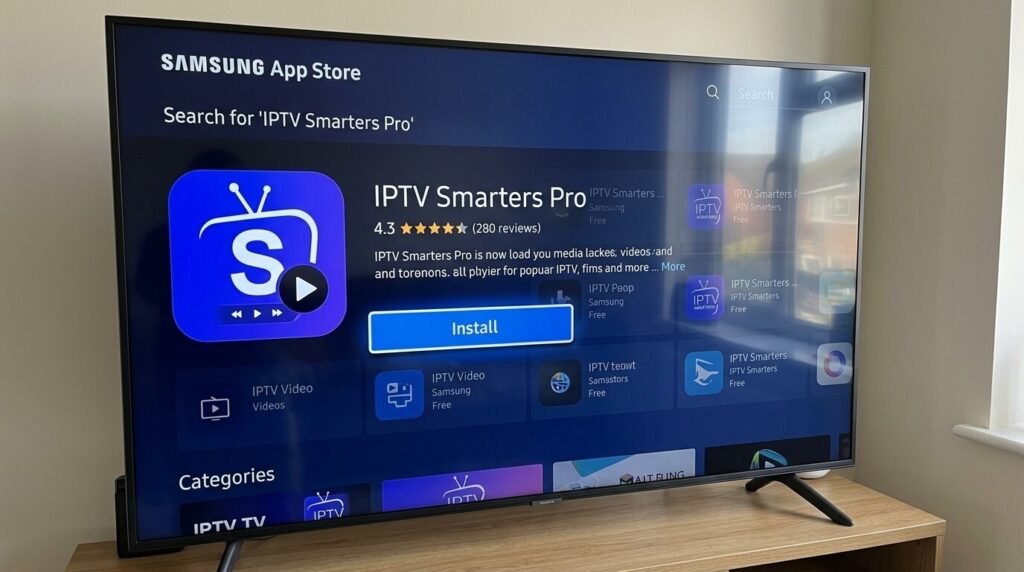
For Samsung smart TVs, the process is a little different because Samsung uses its own Tizen operating system instead of Android. Some IPTV apps like Smart IPTV or IPTV Smarters are available through the Samsung app store. Search for them, install, and log in with your credentials. If your provider has their own custom app, they may provide a direct installation link or a sideloading method specific to Samsung.
For LG smart TVs, which run on webOS, the process is similar to Samsung. Check the LG Content Store for available IPTV apps. Smart IPTV is one of the more popular options for LG. Install it and configure it with your subscription details.
One tip I will share from personal experience — smart TV apps sometimes feel a little slower and clunkier compared to using a dedicated device like a Firestick. The TV processors are not always as fast, especially on older models. If your smart TV is more than a few years old and the app feels sluggish, consider picking up a Firestick or Android box instead. They are cheap and the performance difference is noticeable.
How to set up IPTV on Android devices
Setting up IPTV on an Android phone or tablet is probably the easiest method of all. If you have ever installed an app from the Google Play Store, you already know how to do this.
Step 1. Open the Google Play Store on your Android device.
Step 2. Search for your IPTV app. IPTV Smarters Pro, TiviMate, and GSE Smart IPTV are all available. If your provider has a custom app, they may give you a direct download link instead.
Step 3. Install the app and open it.
Step 4. Enter your subscription credentials — username, password, and server URL.
Step 5. Browse your channels and VOD library and start watching.
The entire process takes about two minutes. Android devices handle IPTV apps well, and you can even cast your screen to a TV using Chromecast if you want a bigger viewing experience. I have done this a few times when I was traveling and wanted to watch a game on the hotel TV. Worked perfectly.
How to set up IPTV on iPhone and iPad
Apple devices work a little differently because Apple’s App Store has stricter policies about which apps they allow. Some IPTV apps that are freely available on Android may not be listed on the App Store.
That said, there are still solid options. GSE Smart IPTV is available for iOS and works well. Some providers also have their own iOS-compatible app that you can download directly from the App Store.
Step 1. Open the App Store on your iPhone or iPad.
Step 2. Search for GSE Smart IPTV or whatever app your provider recommends for iOS.
Step 3. Download and install the app.
Step 4. Open the app and add your playlist. You can usually do this by entering your M3U URL or Xtream Codes credentials in the app settings.
Step 5. Once the playlist loads, your channels and movies will appear and you can start streaming.
One thing to keep in mind with iPhones — the screen is obviously smaller, so this works best for casual viewing or situations where you do not have access to a bigger screen. iPads offer a much better experience for extended watching. You can also use AirPlay to mirror your iPad screen to an Apple TV if you have one.
How to set up IPTV on a Windows computer
If you prefer watching on your laptop or desktop, setting up IPTV on Windows is simple and requires no special technical skills.
The most popular option is VLC Media Player, which is a free and open-source media player that has been around for years. Most people already have it installed on their computer for watching video files.
Step 1. Download and install VLC Media Player from the official website if you do not already have it.
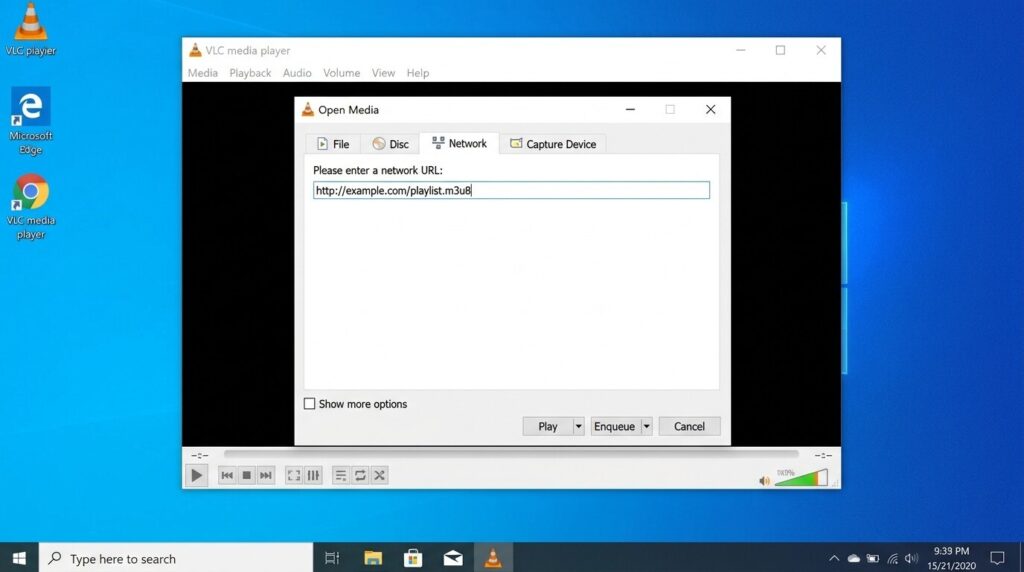
Step 2. Open VLC and go to Media in the top menu bar, then click on Open Network Stream.
Step 3. Paste your M3U URL into the network URL field and click Play.
Step 4. VLC will load your IPTV playlist and begin streaming.
Alternatively, you can use dedicated IPTV apps for Windows like MyIPTV Player, which is available in the Microsoft Store. This option gives you a more organized interface with channel categories and favorites — closer to what you would get on a Firestick or smart TV.
Troubleshooting common setup issues
Even when you follow every step correctly, things can occasionally hiccup. Here are the most common issues I have encountered and how to fix them.
The app says “unable to connect” or “playlist failed to load.” Double-check your credentials. One wrong character in the server URL, username, or password will prevent the app from connecting. Copy and paste instead of typing manually if possible. If the credentials are correct, the issue might be on your provider’s server side. Wait a few minutes and try again, or contact their support.
The stream keeps buffering. This is almost always an internet speed issue. Run a speed test on your device to check your current bandwidth. If you are below 15 Mbps, that is likely the problem. Try moving closer to your router, switching to a 5 GHz Wi-Fi band instead of 2.4 GHz, or connecting with an ethernet cable. Also close any other apps or devices that might be eating up bandwidth.
The app installed but will not open. This sometimes happens on Firestick or older smart TVs. Try restarting your device completely — unplug it, wait thirty seconds, and plug it back in. If the app still will not open, uninstall it and reinstall it from scratch.
Channels load but video is black screen or no audio. This can happen when the app’s video player is not compatible with the stream format. Most IPTV apps let you switch between built-in player options in the settings. Try changing the player type from the default to an alternative option — usually labeled as “Player 2” or “External Player” — and see if that resolves it.
The app works on one device but not another. Some IPTV providers limit the number of simultaneous connections. If someone else in your household is already logged in on another device, you might get blocked from connecting until they disconnect. Check with your provider on how many connections your plan allows.
Most of these issues are quick fixes and nothing to stress over. Nine times out of ten, a simple restart or a credential correction solves the problem.
Setting up IPTV is genuinely one of those things that feels complicated until you actually do it. Whether you are using a Firestick, a smart TV, your phone, or a computer, the process follows the same basic pattern — install an app, enter your credentials, and start watching. Ten minutes tops for most devices.
The key is having your subscription details ready before you start and choosing a reliable app that works well on your specific device. Once everything is configured, you will wonder why you did not do this sooner.
If you are all set up and ready to watch but have some nagging questions about whether your IPTV service is operating within the law, I wrote an honest breakdown of IPTV legality that covers everything you need to know before you get too deep into it. And for the full picture of how IPTV works, which providers to consider, and how it all comes together, the complete guide to IPTV service has you covered from start to finish.
Now go fire up that Firestick, load up your channels, and enjoy. You earned it.